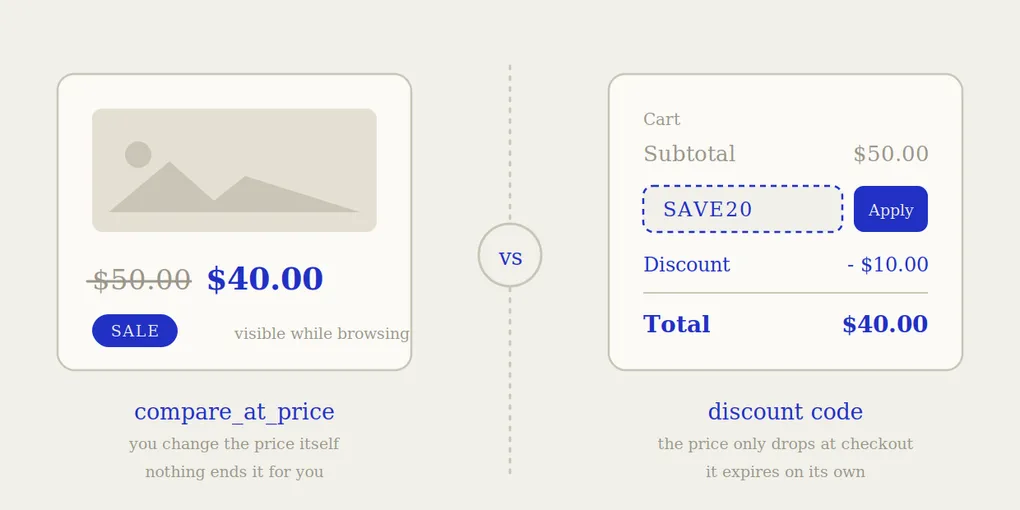
compare_at_price vs discount codes: which to use for a sale on Shopify
You have decided to run a sale. Then Shopify hands you two completely different ways to do it, and no guidance on which one to pick.
You can lower the price itself and let the old price show struck through. Or you can leave your prices alone and create a discount that applies at checkout.
Both end with the customer paying less. Everything else is different: what shoppers see while browsing, what your reports say afterwards, what your Google Shopping feed advertises, and, most importantly, what happens when the sale is supposed to end.
Here is the honest comparison.
What compare_at_price actually is
compare_at_price is a field on every product variant. It holds the “before” price, and nothing else.
The rule Shopify follows is blunt: if compare_at_price is higher than price, the theme displays the old price struck through next to the new one, and most themes add a “Sale” badge automatically.
So running a sale this way is two edits per variant:
- Copy the current price into
compare_at_price - Lower
price
That is the whole mechanism. There is no sale object, no on/off switch, no status field. Shopify does not know a sale is running. It simply renders two numbers and lets the theme draw a line through one of them.
This has a consequence most merchants discover the hard way, so it deserves its own line: nothing in Shopify ends a compare_at_price sale. It runs until you personally go back and undo it.
What discounts actually are
A discount is a separate object living in the Discounts section of your admin. It never touches your product data. It comes in two forms:
- Discount code: the customer types
SAVE20at checkout, or arrives through a link that applies it - Automatic discount: it applies by itself once the cart meets your conditions, no code to remember
Both support percentage off, fixed amount off, buy X get Y, and free shipping. Both can be restricted to specific products, collections or customer segments, capped by usage, or gated behind a minimum purchase.
And both have a start date and an optional end date built in. You set them once and Shopify turns the discount on and off for you.
The trade-off is visibility. A discount does not change the price shown on your product pages or collection pages. A shopper browsing your store sees full price everywhere. The reduction only appears in the cart or at checkout.
Side by side
| compare_at_price | Discount code / automatic discount | |
|---|---|---|
| Where the price drops | Everywhere: product pages, collections, search | Cart and checkout only |
| Struck-through price and Sale badge | Yes | No |
| Customer has to do something | No | Yes for a code, no if automatic |
| Built-in scheduling | None | Start date and end date |
| Ends by itself | No | Yes |
| Shows up in Shopify discount reports | No | Yes |
| Reflected in Google and Meta product feeds | Yes, as a sale price | Usually not |
| Handles BOGO, free shipping, minimum spend | No | Yes |
| Granularity | Per variant | Cart-level rules |
| Risk if you forget about it | You keep selling below cost indefinitely | It expires on its own |
When compare_at_price is the right tool
Use it when the discount is the reason someone buys and therefore has to be visible before the cart.
- Site-wide seasonal sales and clearance, where people browse specifically to see what is cheap
- Anything advertised through Google Shopping or Meta feeds: the struck-through price carries into the feed and lifts click-through rates
- Categories where shoppers compare prices across stores before clicking
- Sales you want visible to someone who lands on a single product page from Google and never sees your homepage
The struck-through price is doing real work here. It creates the comparison in the shopper’s head at the exact moment they are deciding, without asking them to remember anything.
When a discount is the right tool
Use one when the reduction is a lever aimed at a person or a behaviour, not a price statement made to the whole market.
- Welcome codes for newsletter signups
- Influencer, affiliate and partner codes, where you need to know which code drove which sale
- Abandoned cart recovery
- Anything conditional: spend $80 and get free shipping, buy two get one free
- A goodwill gesture to one customer after a problem
- Cases where your public price must not move at all: B2B catalogues, minimum advertised price agreements, resellers watching your storefront
Discounts also win on measurement. Shopify reports discount usage per code, so you can tell exactly what a promotion cost you. A compare_at_price change leaves no trace in your reports at all: the lower price simply becomes your revenue, and the discount is invisible in your own analytics.
The asymmetry nobody mentions
Read the comparison table again and one row matters more than the rest.
Discount codes expire by themselves. Price changes do not.
Shopify’s discount system was built with a lifecycle: created, scheduled, active, ended. Your product prices were not. They are just data, and data does not know it was supposed to be temporary.
That is why almost every “my sale never ended” story involves compare_at_price and almost none involve discount codes. We wrote a whole piece on that failure and how to recover from it: why your Shopify discount didn’t end on time.
So the real decision is not just which tool converts better. It is which tool you can actually operate reliably, given that one of them expects you to remember a date, sometimes across hundreds of variants, weeks later, while running the rest of your store.
Can you use both at once? Yes, and be careful
Nothing stops you from putting products on sale with compare_at_price and running a discount code at the same time. Plenty of stores do it during Black Friday: 30% off displayed on the storefront, plus an extra 10% code for the newsletter list.
The thing to watch is that Shopify does not consider compare_at_price a discount. From its point of view, your reduced price is the price. So a 10% code applies on top of an already reduced price, not on top of the original one. Two reductions of 30% and 10% do not leave you at 60% of the original price. They leave you at 63% of it, and if your margin was 40% to begin with, you are now selling at a loss on every order that uses the code.
Run the arithmetic on your worst-margin product before combining the two, not on your best one.
A practical rule
If you want one sentence to decide with:
Use compare_at_price when the sale needs to be seen. Use a discount when the sale needs to be earned, targeted, or measured.
Everything else follows from that. Seasonal sales, clearance and feed-driven ads want visibility. Welcome offers, partner codes and conditional promotions want control.
Making the first one safe
If you go with compare_at_price, and for most storefront sales you should, the only thing left to solve is the ending. Two options, in order of reliability:
-
Schedule it up front, before the sale starts. Deciding the end date while you are setting the sale up is the only moment you have full context. Doing it later means going back into a working store and remembering exactly which variants you touched. We covered the approach in how to schedule a sale in advance on Shopify.
-
Snapshot the original prices somewhere reliable before you change anything. Restoring from memory or from a screenshot is where the mistakes come from. The full method is in how to automatically revert prices after a sale on Shopify.
Where Boomr fits in
Boomr: Sale Scheduler exists for exactly the gap this article describes: Shopify schedules discounts for you, but not price changes.
You pick the products, set the discount, set the end date, and Boomr stores every original price before touching anything. When the end date arrives, prices go back on their own, to the exact values they had before, without you being at your desk.
Discount codes already end by themselves. This gives your storefront prices the same guarantee.