How to schedule Black Friday and Cyber Monday discounts on Shopify
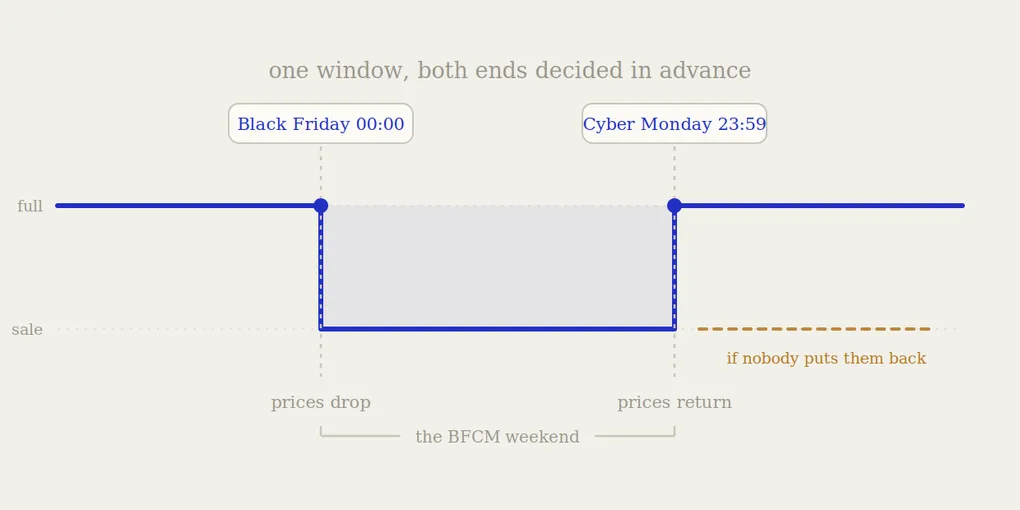
Black Friday falls on 27 November 2026, and Cyber Monday on 30 November. For most stores that is one continuous window: prices drop late Thursday and return late Monday.
The window is the whole point. A BFCM discount that starts late misses the traffic peak, and one that ends late keeps selling your best margin away into December, to customers who would have paid full price anyway.
So the real question is not what discount to offer. It is how to make both ends of that window happen on time, without you sitting at a laptop at midnight on a holiday weekend.
What Shopify schedules, and what it does not
This is the distinction that decides your whole setup, and it catches people out every year.
Discounts have a scheduler. Create a discount code or an automatic discount in the Discounts section, and you get a start date, a start time, an end date and an end time. Shopify turns it on and off for you. Nothing else required.
Price changes do not. If you run your sale by editing prices and compare_at_price - the method that shows a struck-through price on every product page - Shopify offers no scheduling at all. There is no start field, no end field, no status. You change the numbers, and they stay changed until you change them back yourself.
Most BFCM sales use price changes, because the struck-through price is what makes the sale visible to someone browsing or arriving from Google Shopping. Which means most BFCM sales have a scheduled beginning only in the sense that you did it manually, and no scheduled ending at all.
We compared the two mechanisms in detail in compare_at_price vs discount codes. For BFCM specifically, the visibility argument is stronger than usual: shoppers that weekend are explicitly comparing, and a price without a visible reference point does not read as a deal.
Decide the four timestamps now
Not the dates. The timestamps, with a timezone. Write them down before you touch anything:
| Moment | Typical setting |
|---|---|
| Sale starts | Thu 26 Nov, 21:00 or Fri 27 Nov, 00:00 |
| Early-access window ends (optional) | Fri 27 Nov, 08:00 |
| Cyber Monday deepening (optional) | Mon 30 Nov, 00:00 |
| Sale ends | Mon 30 Nov, 23:59 |
Two details that matter more than they look.
Pick one timezone and state it everywhere. Your store timezone, your announcement emails and your scheduled tasks must all refer to the same one. A store set to UTC selling mostly to US customers will end its sale at what feels to those customers like Monday afternoon, cutting off several hours of the single biggest day.
Do not end at 00:00 Tuesday. End at 23:59 Monday. It reads as the same instant but removes the ambiguity about whether Monday itself is included, which is exactly the question customers email you about at 22:00.
Setting up the price-change side
If you are running the visible version of the sale, the sequence is:
1. Build the product list before November. Which products, which variants, what discount on each. Doing this in the last week is how bestsellers end up discounted by accident.
2. Check margin per product, not on average. BFCM discounts are deeper than usual, which makes the arithmetic less forgiving. A 40% discount on a 50% margin product means you need five times the volume to earn the same profit. The full table is in how to run a flash sale without losing margin and it applies unchanged here.
3. Export every original price. This is the step that determines whether the sale ends cleanly. Before a single price is edited, you need a reliable record of the current values, per variant. Not a screenshot, not the admin history, not memory. A BFCM sale often touches hundreds of variants; reconstructing them by hand in December is how stores end up with permanent silent discounts.
4. Schedule the change, or set an alarm you cannot ignore. If nothing applies the change automatically, the sale starts when you personally do it - and midnight on the Thursday of a holiday weekend is the worst possible moment to be doing careful bulk edits.
5. Schedule the restoration. Same problem, worse consequences. See below.
Setting up the discount-code side
If you are also running a code - an extra percentage for your email list, an influencer code, an early-access link - this part is easier, because Shopify handles it:
- Set the active dates on the discount itself, both start and end. Do not rely on turning it off manually.
- Set a usage limit if the code leaks. BFCM is the weekend codes get scraped and posted to deal aggregators.
- Decide explicitly whether it combines with your price-change sale. Shopify treats your reduced price as the price, so a 10% code applies on top of an already discounted amount. A 35% price cut plus a 10% code leaves you at 58.5% of the original, not 55%. On a 50% margin product, that is the difference between a thin profit and a loss.
- Test it in a real cart before the weekend. Not in the admin preview.
The ending is the whole risk
Here is the asymmetry that defines BFCM for a small store.
If your sale starts an hour late, you lose an hour of traffic. Annoying, recoverable.
If your sale ends three days late, you have sold your deepest discounts of the year, on your highest-volume weekend, to customers arriving in December who were never part of the promotion. Those are full-price buyers you converted into discount buyers, at the exact moment when demand is still high and you no longer need to discount at all.
And nothing in Shopify prevents it. The discount codes expire on their own; the prices do not. On the Monday night your sale is supposed to end, the platform does nothing, and the only mechanism that ends the sale is you remembering, being available, and correctly restoring several hundred values.
That is a lot to ask of the last night of the busiest weekend of your year. We wrote about how this fails and how to recover in why your Shopify discount didn’t end on time, and about restoring prices reliably in how to automatically revert prices after a sale.
The Tuesday check
Whatever method you use, put one task in your calendar for Tuesday 1 December, morning:
- Open the storefront, not the admin, logged out, on a phone.
- Check five or six of the discounted products. Prices back to normal?
- Look for leftover Sale badges and struck-through prices showing the same number twice - the sign of a
compare_at_pricethat was not cleared. - Compare profit, not revenue, against a normal four-day period.
Partial restoration failures are far more common than total ones. Thirty-eight variants go back and two do not, because a product had its variants collapsed in the list or a bulk edit silently skipped a row. Those two will keep selling below cost until someone notices, and nobody notices in December.
The full version of this list, for any sale, is in the complete Shopify sale checklist.
Where Boomr fits in
Steps 3 and 5 above - recording every original price, and making the restoration happen on its own - are the two that Shopify leaves entirely to you, and the two that cost real money when they slip.
Boomr: Sale Scheduler handles both. You select the products, set the discount, set the start and the exact end time. Every original price is stored before anything is modified. When Cyber Monday ends, prices go back on their own, to the exact values they had before, whether or not you are awake.
Your discount codes already expire by themselves. This gives your storefront prices the same guarantee, on the one weekend of the year when it matters most.